
Login
The REST API supports two login methods: API key authentication and username/password authentication.
1. API Key
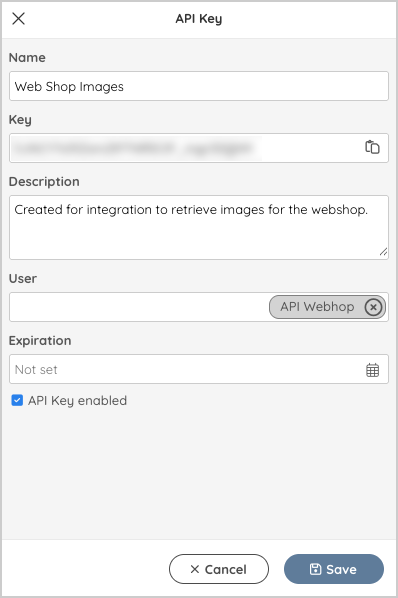
How to set up an API Key
- Go to Admin/API Keys
- Create new API Key
- Name: Name of the API Key
- Key: Generated by the system. Cannot be edited.
- Description: It is always good to let other admins know when and why the API Key is created.
- User: The user credentials & rights which determine which assets and hierarchies are accessible for API usage.
- Expiration: Expiration time of the API key.
- Enabled: Enabled/Disabled.
- Copy the value of the Key and use it in the GetToken request
Request: POST /papi/v1/auth/GetToken
| Parameter | Parameter Type | Mandatory | Description |
|---|---|---|---|
| x-api-key | Header | yes | The API key must be provided as a x-api-key in the header. |
2. Username & password
Request: POST /papi/v1/auth/Login
Provide a valid username and password, and send the login request
| Parameter | Parameter Type | Mandatory | Description |
|---|---|---|---|
| User info | Body | yes | User and Password in JSON format in the request body. See the format below |
{
  "User": "string",
  "Password": "string"
}
Output
Response In succesfull request the “x-auth-token” is returned.
{
    "x-auth-token": "[Token]"
}
The authentication token must be provided as an x-auth-token in the request header for every api request except the login request.
cURL example
curl --location --request POST 'https://[EMMi instance]/papi/v1/auth/Login' \
--header 'Content-Type: application/json' \
--data-raw '{"User": "[User]", "Password": "[Password]"}'Feedback
Copyright © 2026 Grano
—
Powered by 
Post your comment on this topic.